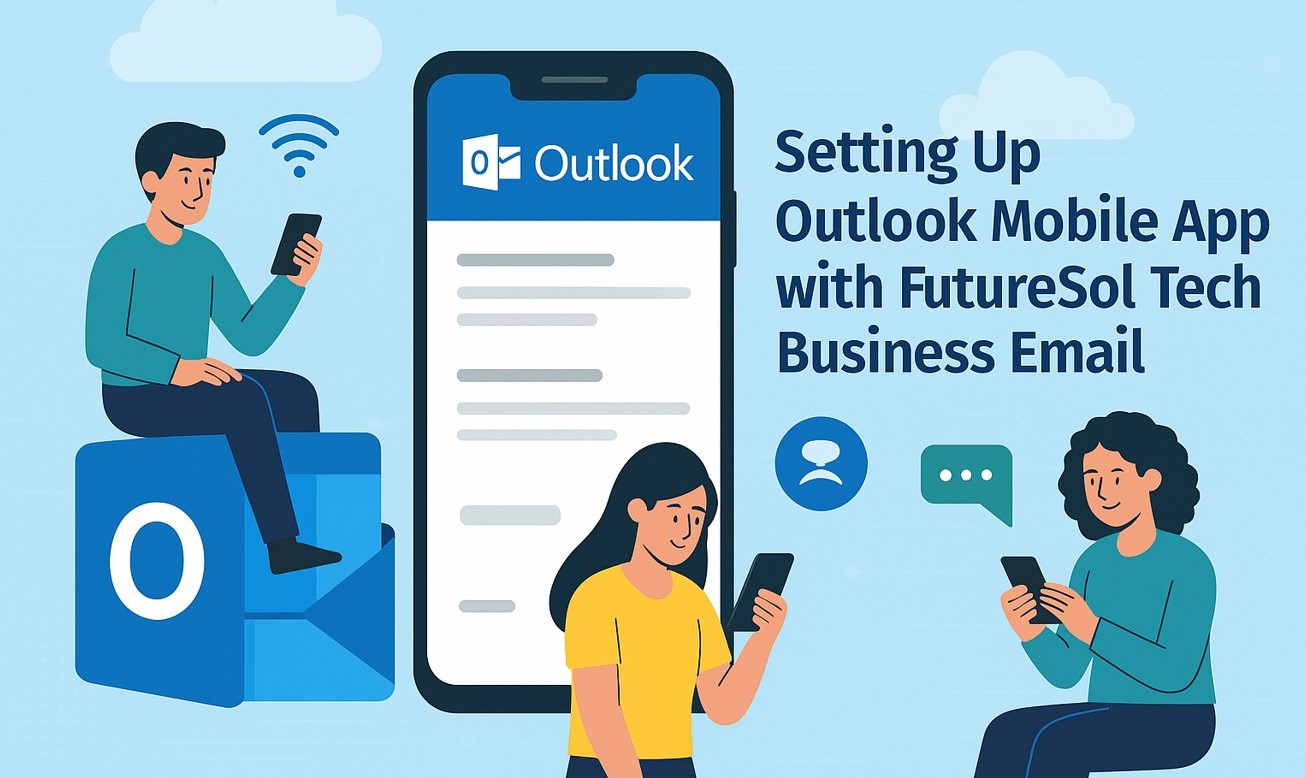
How to Set Up Outlook Mobile with Futuresol Tech Business Email
Step-by-Step POP3 & IMAP Configuration Guide for Beginners
Why Use Outlook Mobile for Your Business Email?
Outlook Mobile allows you to access your business email from anywhere. With Futuresol Tech email accounts, you can manage your inbox, contacts, calendar, and tasks securely on your smartphone or tablet. Whether you choose POP3 or IMAP, Outlook Mobile ensures your messages are synchronized and accessible across all devices.
Setting Up Outlook Mobile Using POP3
Follow these steps for POP3 configuration:
- Install the Outlook app on your iOS or Android device.
- Open Outlook and select Add Account.
- Enter your Futuresol Tech business email address and tap Continue.
- Select POP as the account type.
-
Enter the following server settings:
- Incoming Mail Server: mail.yourdomain.com
- Port: 995
- Encryption: SSL/TLS
- Username: Your full email
- Password: Your email password
-
For the outgoing server:
- SMTP Server: mail.yourdomain.com
- Port: 465 or 587
- Encryption: SSL/TLS
- Tap Sign In to finish setup.
POP3 downloads emails to your device, so messages may not sync across multiple devices.
Setting Up Outlook Mobile Using IMAP
For IMAP, which syncs emails across devices:
- Open the Outlook app and add your account.
- Select IMAP as the account type.
-
Enter incoming server settings:
- IMAP Server: mail.yourdomain.com
- Port: 993
- Encryption: SSL/TLS
-
Enter outgoing server (SMTP) settings:
- SMTP Server: mail.yourdomain.com
- Port: 465 or 587
- Encryption: SSL/TLS
- Provide your email username and password, then tap Sign In.
IMAP ensures all your sent, received, and folder emails are synchronized across all devices.
Managing Your Outlook Mobile Inbox
- Use Folders and Categories to organize emails
- Pin important messages to the top
- Enable swipe gestures to quickly archive or delete messages
- Search emails using the Search Bar
Outlook Calendar and Contacts
- Create events and appointments easily
- Sync your calendar with Microsoft Teams or Zoom
- Save contacts and create groups for faster communication
- Access your contacts across all synced devices
Top Tips for Outlook Mobile Productivity
- Enable push notifications for important emails
- Set automatic replies when you are away
- Use templates for repeated emails
- Organize emails with rules for automatic sorting
Frequently Asked Questions
Need Help Setting Up Outlook Mobile?
Our team can guide you with step-by-step Outlook Mobile setup for your Futuresol Tech email account.
📱 Contact Support:
🇦🇪 UAE: +971 54 508 1588
🇵🇰 Pakistan: +92 334 566 2119
🇸🇦 Saudi Arabia: +966 50 547 4956
Related Articles
-

-

FutexHR Biometric Attendance
10 Jun, 2025 -

-

ERP with HR, Payroll, Accounting, Billing
1 Jun, 2025 -

-